Setting Up a Safe OSINT Research Environment
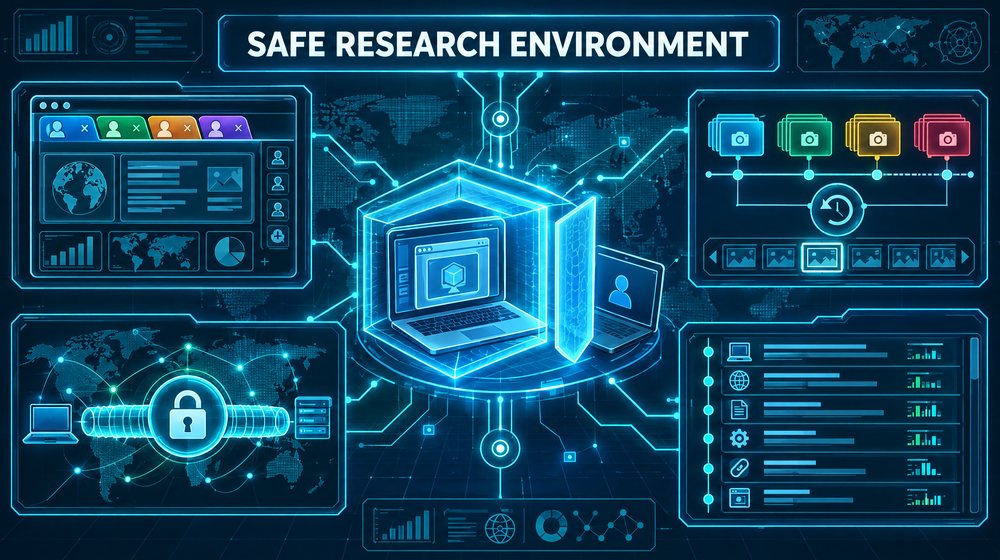
Most OSINT mistakes that cause real harm do not come from bad searching. They come from a messy workspace: a personal account that brushes against a subject's profile, a browser that quietly autofills your real name into a form, notes scattered across three apps with no times on them, or a laptop that has not been patched in months. A research environment is the set of habits and tools that keeps your work separate, repeatable and defensible. This guide walks through how to build one that suits a solo analyst or a small team, without expensive kit.
The goal is not to become invisible. It is to make sure that what you see, what you record and what you reveal about yourself are all deliberate choices.
What a research environment has to do
Before choosing tools, be clear about the jobs the environment must perform. A sound setup does four things:
- Separation. Research activity never touches your personal accounts, personal browsing history, saved passwords or social graph.
- Containment. If you open a hostile link or a booby-trapped document, the damage stays inside a space you can throw away.
- Recording. Every source you rely on is captured with a time, a URL and enough context that someone else could find it again.
- Consistency. The environment looks and behaves the same from one case to the next, so differences in results reflect the target, not your setup.
If a tool does not help with one of these four jobs, you probably do not need it.
Choosing a level of isolation
There is no single correct setup. The right level depends on what you research, who might notice, and what is at stake if you are noticed. Think of it as three tiers.
Tier 1: A dedicated browser profile
For low-risk work, such as company research or public records lookups, a separate browser profile is a reasonable minimum. Chrome, Edge and Firefox all support multiple profiles, each with its own cookies, history, extensions and saved logins. Never sign the research profile into a personal account, and turn off password saving and autofill. Firefox's Multi-Account Containers extension adds separate cookie containers within one profile, useful for viewing a platform logged out in one tab and logged in with a research account in another.
A profile separates data. It does not contain threats. Your operating system, IP address and hardware are the same as when you browse personally.
Tier 2: A virtual machine
For most investigative work, a virtual machine (VM) is the sensible default. A VM is a complete operating system running inside a window on your computer. VirtualBox and VMware Workstation are common choices on Windows and Linux, and UTM or Parallels are common on Apple silicon Macs. Inside the VM you install a clean operating system, a browser and your research tools, and nothing else.
The VM gives you containment and a clean slate. If a site behaves strangely or a downloaded file turns out to be malicious, you revert the VM to a known-good snapshot and carry on. It also means your host machine's history, files and accounts never appear in the research space.
Tier 3: Dedicated hardware or a hosted environment
Some work justifies a separate laptop, or a hosted browser that runs in a data centre rather than on your machine, for example sustained research into groups known to target researchers. Reserve it for cases where the risk assessment calls for it.
Network considerations
A commercial VPN changes the IP address that websites see, which keeps your home or office address out of server logs. It does not make you anonymous, and some sites flag VPN ranges. Tor offers stronger anonymity, but many sites treat its traffic with suspicion. Check your organization's policy, choose per case, and write the choice down.
Building the VM: a practical baseline
A good research VM is boring. It contains the minimum needed, configured the same way every time.
- Install a supported operating system from the vendor's official image, not a pre-built image from an unknown source.
- Apply all updates before you do anything else.
- Install one main browser and disable password saving, autofill and sync. Keep history during the case.
- Add only the extensions you need, such as a page capture tool and a content blocker. Each extension can read pages you visit, so fewer is safer.
- Set the time zone deliberately. Many analysts set the VM to UTC so that every timestamp in notes and screenshots shares one reference. Whatever you choose, record it.
- Use a generic operating system username. Document metadata can carry the account name into files you create.
- Disable shared folders and clipboard by default, enabling them only briefly to move a file out.
- Take a snapshot named with the date, for example
baseline-2026-10-31. This is your clean starting point.
Update and snapshot discipline
Snapshots are only useful if you manage them on purpose. The common failure is a VM that has been reverted so often to an old snapshot that it is months behind on security patches.
A simple rhythm works well:
- Weekly or before each new case: revert to the baseline, apply updates to the OS, browser and tools, confirm everything still works, then take a new baseline snapshot and delete the oldest one.
- At the start of a case: clone the current baseline or take a case snapshot, so each investigation begins clean and nothing from the last case leaks into this one.
- After risky actions: if you open an unknown attachment or visit a site you suspect is hostile, finish capturing what you need, export your notes, then revert.
- At case close: export the evidence and notes to your case storage, then delete the case VM or revert it.
Keep a short snapshot log outside the VM. When a site renders differently, it tells you whether your environment changed or the target did.
Separating research from personal identity
Isolation technology is only half the job. The other half is behaviour.
- Never log into a personal email, social media or cloud account inside the research environment, even briefly to grab a file.
- Do not reuse a personal phone number or recovery email for anything connected to research.
- Be careful with "people you may know" features. Platforms link accounts through contacts, phone numbers and location, and a personal account that searched for a subject can surface in their suggestions.
- Link previews and read receipts can tell a sender you opened something. Copy links into the research browser instead.
Research accounts: what they are and where the limits sit
Much useful information on social platforms is only visible to logged-in users. Many analysts therefore keep research accounts: accounts created for investigative work and kept separate from their personal identity. These are sometimes called sock puppets, though that term also describes deceptive accounts used to manipulate discussions, which is a different and unacceptable practice.
The terms-of-service problem
Several major platforms require users to use their real identity or prohibit misleading accounts in their terms. Meta's terms for Facebook, for example, require people to use the name they go by in everyday life. Creating an account under an invented persona on such a platform breaches its terms even if your purpose is lawful. Consequences range from suspension to, in some contexts, legal exposure, and courts may scrutinize evidence gathered through deceptive accounts.
Practical guidance:
- Read the platform's terms before creating any account there, and record what they say about identity.
- Get written authorization covering which platforms and what activity is allowed.
- Prefer non-deceptive options. An account in your organization's name, or one that is simply minimal and does not claim to be anyone in particular, is easier to defend than a detailed false persona.
- Observe, do not engage. Passive viewing is very different from friending, messaging, joining closed groups or interacting with a subject. Engagement can amount to pretexting and can taint evidence.
- Never use an account to access content you are not entitled to see, to bypass blocks a subject has placed on you, or to deceive someone into sharing private information.
If you work in law enforcement, legal practice or regulated industries, your rules on this may be stricter than anything in this article. Follow them.
Managing research accounts responsibly
Keep a register of every research account: platform, creation date, what it is authorized for, which device and network it is used from, and who controls it. Store credentials in a password manager, not in the VM, use each account from a consistent environment, and retire accounts that are no longer authorized.
Logging: the part everyone skips
An observation you cannot reproduce is a rumour. Logging turns your browsing into evidence.
What to record for every relied-on source
- The full URL, and an archived copy where possible.
- The date and time of capture, with the time zone.
- A screenshot or full-page capture showing the content and the address bar.
- What you were looking for and why this source mattered.
- Which account, if any, you were logged in as.
Hunchly is a commercial browser extension built for investigators that captures every page visited during a case. Free alternatives include full-page screenshots plus a disciplined notes file. The Wayback Machine's "Save Page Now" feature gives a third-party record that a public page existed at a given time. It only captures what the Archive can see without logging in, and you should not submit pages that would expose a private individual further.
Hashing captured files
For anything that might end up in a legal or disciplinary process, compute a hash of each captured file at the time you save it. On Linux and macOS, sha256sum or shasum -a 256 does this. On Windows, PowerShell's Get-FileHash uses SHA-256 by default. Record the hash in your log. Later, anyone can recompute it and confirm the file has not changed.
A worked example
Suppose you are asked by a small business to look into a newly registered company that has been contacting its customers with suspicious invoices. The work is authorized, low to moderate risk, and will likely involve websites, company registries and a couple of social media pages.
You revert your research VM to last week's baseline, apply pending updates, and take a snapshot called case-2026-031-start. You confirm the VM clock is set to UTC and open a new notes file named with the case number. In the first line you write the date, your environment (VM name, snapshot, VPN on or off) and the scope agreed with the client.
You capture the company's website full-page, submit the home page to the Wayback Machine, and hash the screenshot. The site links to an invoice PDF, which you download inside the VM and inspect for metadata before opening. You record its author field for later corroboration.
The company's social media page shows some posts only to logged-in users. Your organization has authorized one minimal research account on that platform for passive viewing, so you log in, capture the posts, and note that the account was used. You do not follow, like or message the page.
At the end of the day you export notes and captures to the case folder outside the VM, record the hashes, and revert. Every claim in your eventual report points to a timestamped, hashed capture.
Common mistakes and limits
- Treating a VPN as anonymity. It hides your IP address, not your behaviour, logins or browser fingerprint.
- Letting the baseline go stale. An unpatched research VM is a liability, not a safeguard.
- Cross-contamination. Opening a personal account "just once" in the research browser, or moving files through a shared folder you forgot to disable.
- Undocumented environment changes. Changing VPN exit country mid-case changes search results and geo-restricted content. Note it.
- Logging only the final answer. Record dead ends too.
- Assuming isolation makes intrusive research acceptable. A clean environment protects you. It does not change what is lawful or proportionate.
Ethics and legality
A careful environment is a professional courtesy to everyone involved: your client, your organization, and the people you research. Work only within an agreed scope and a lawful purpose. Collect what the question requires and no more. Store personal data securely and delete it when the case closes, in line with data protection law where you work. Never use your environment to access accounts, systems or content you are not authorized to view, and never use it to monitor or harass an individual.
Checklist
- Pick an isolation tier that matches the case risk and record the choice.
- Keep a clean baseline VM or browser profile with no personal accounts, autofill or sync.
- Set and record the time zone; UTC is a sensible default.
- Update the baseline on a schedule and keep a snapshot log.
- Start each case from a fresh snapshot and revert after risky actions.
- Check platform terms and get written authorization before using research accounts; observe, do not engage.
- Capture every relied-on source with URL, time, screenshot and context.
- Hash files that may become evidence and record the hashes.
- Export notes and evidence out of the VM at the end of each session.
- Collect only what the question needs and delete it when the case closes.