Reverse Image Search Is Not One Search: A Better Four-Step Workflow
BY OSINT BLOG
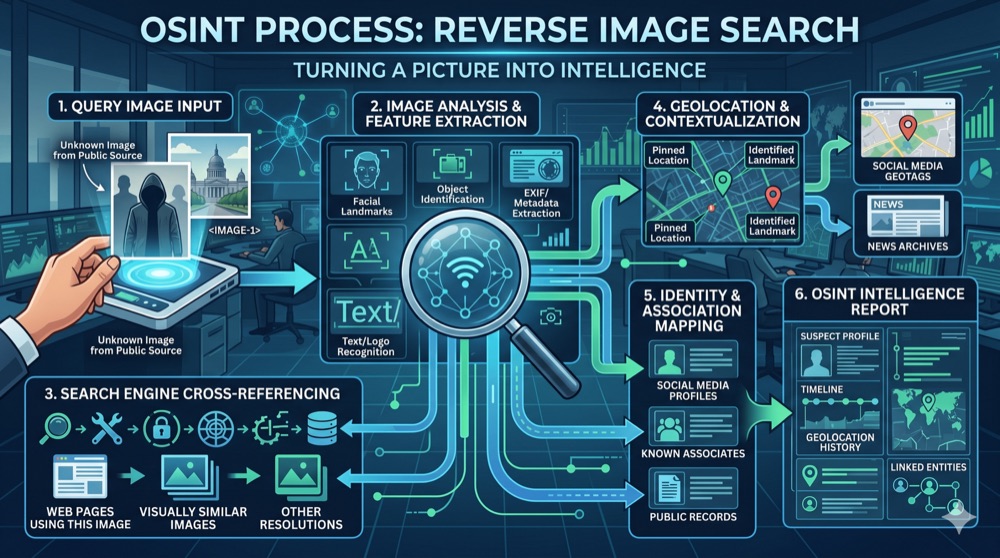
Introduction: Why Reverse Image Search Is Essential for OSINT
Reverse image search is one of the most powerful tools in the OSINT toolkit. The ability to take an image and find where it appears online, who posted it, when it was first published, and how it has been modified or misused is invaluable for investigations ranging from identifying misinformation to locating missing persons to verifying the authenticity of evidence.
However, many OSINT practitioners approach reverse image search as a single action: upload an image to Google Images, get results, and move on. This approach misses critical opportunities for deeper investigation and can lead to incomplete or inaccurate conclusions.
The reality is that effective reverse image search is not one search—it's a systematic four-step workflow that involves preparing the image, searching across multiple platforms, analyzing results, and verifying authenticity. This article walks you through each step and provides practical guidance for conducting thorough reverse image searches.
Step 1: Prepare the Image - Cropping, Optimization, and Metadata
Before you conduct any reverse image search, you need to prepare the image. This step is often overlooked, but it can dramatically improve your search results.
**Examine the Metadata**
Start by extracting and examining the image's metadata. Metadata includes information like: - Camera model and settings - GPS coordinates (if available) - Date and time the photo was taken - Software used to edit the image - Copyright information
Tools like ExifTool, Jeffrey's Exif Viewer, or online EXIF readers can extract this information. Metadata can provide immediate clues about the image's origin and authenticity. However, be aware that metadata can be stripped, modified, or fabricated, so it should be one piece of evidence among many.
**Crop the Image Strategically**
Reverse image search algorithms work by analyzing the visual content of an image. If you search with the entire image, the algorithm must match all elements—the background, the subject, the lighting, and everything else. This can reduce your results if the image has been cropped, edited, or appears in different contexts.
Instead, crop the image to focus on the most distinctive element. If you're searching for a person, crop to show just their face or upper body. If you're searching for a building, crop to show the distinctive architectural features. If you're searching for a logo or object, isolate that element.
However, don't crop too aggressively. You want enough context for the algorithm to work with, but not so much that irrelevant background elements interfere with the search.
**Optimize the Image Quality**
Reverse image search algorithms perform better with higher-quality images. If you have a low-resolution or heavily compressed image, consider: - Upscaling the image using AI upscaling tools (like Upscayl or Let's Enhance) - Adjusting brightness and contrast to make details more visible - Removing watermarks or overlays if they obscure important details
Be cautious about over-processing the image—you want to enhance clarity without fundamentally altering the content.
**Consider Multiple Versions**
Prepare several versions of the image for searching: - The full original image - Cropped versions focusing on different elements - Versions with adjusted brightness/contrast - Versions with different crops if the image contains multiple subjects
Different search engines may return different results for different versions of the same image, so testing multiple versions increases your chances of finding relevant information.
Step 2: Search Across Multiple Platforms
Google Images is the most well-known reverse image search tool, but it's far from the only one. Different search engines index different content and use different algorithms, so searching across multiple platforms is essential for comprehensive results.
**Google Images**
Google Images is the most comprehensive reverse image search engine, with access to billions of indexed images. To use it: 1. Go to images.google.com 2. Click the camera icon in the search bar 3. Upload your image or paste the image URL 4. Review the results
Google Images is particularly good at finding where an image appears across the web and identifying similar images. However, it may not return results for images that are not indexed by Google, such as images on private websites or behind paywalls.
**TinEye**
TinEye (tineye.com) is a specialized reverse image search engine that focuses on finding the original source of an image and tracking how it has been used and modified over time. TinEye is particularly useful for: - Identifying the original source of an image - Tracking image modifications and edits - Finding all instances of an image across the web - Detecting image manipulation
TinEye often returns different results than Google Images, making it a valuable complement to Google's search.
**Yandex Images**
Yandex (yandex.com/images) is a Russian search engine with a powerful reverse image search capability. Yandex is particularly good at finding images from Russian and Eastern European sources, and it often returns results that Google Images misses. If you're investigating content from these regions, Yandex is essential.
**Bing Visual Search**
Bing (bing.com/images) offers reverse image search functionality that sometimes returns different results than Google. Bing's algorithm emphasizes visual similarity, which can be useful for finding images with similar composition or content.
**Specialized Search Engines**
Depending on your investigation, specialized search engines may be useful: - Pinterest Lens: For finding images shared on Pinterest - Flickr: For finding photographs and their metadata - Shutterstock and Getty Images: For finding stock photos - Social media platform searches: For finding images on Facebook, Instagram, Twitter, etc.
**Document Your Searches**
As you search, document: - Which platform you searched - When you searched - What version of the image you used - How many results were returned - Which results seemed most relevant
This documentation is important for your final report and for reproducibility.
Step 3: Analyze Results and Cross-Reference
Once you have results from multiple search platforms, the real work begins: analyzing those results and cross-referencing the information.
**Identify Patterns**
Look for patterns in the results: - Does the image appear on multiple websites? - Are there consistent claims about the image's origin or content? - Do different sources provide conflicting information? - Are there variations of the image (cropped, edited, watermarked)?
**Trace the Image's History**
Try to establish a timeline for the image: - When was it first published? - Where did it first appear? - How has it spread across the internet? - Has it been edited or modified? - Has it been used in different contexts?
TinEye is particularly useful for this, as it shows a timeline of when the image appeared on different websites.
**Verify Source Claims**
If a website claims to be the original source of the image, verify this claim: - Does the website have a history of publishing original content? - Is the image consistent with other content on the website? - Does the website provide metadata or context about the image? - Can you find earlier instances of the image elsewhere?
**Check for Misinformation**
Reverse image search is particularly useful for identifying misinformation. Images are frequently reused out of context or with false captions. Look for: - Images being used to illustrate stories they don't actually relate to - Images with captions that contradict the actual content - Images being presented as recent when they're actually old - Images being presented as from one location when they're actually from another
**Cross-Reference with Other Sources**
Don't rely solely on reverse image search results. Cross-reference your findings with: - News articles about the subject - Social media posts and discussions - Official statements or records - Expert analysis or fact-checking - Geographic or contextual information
Step 4: Verify Authenticity and Track Propagation
The final step in the reverse image search workflow is verifying the authenticity of the image and understanding how it has propagated across the internet.
**Assess Image Authenticity**
Several techniques can help you assess whether an image is authentic or manipulated:
**Metadata Analysis**: Examine the image's metadata for signs of manipulation. Inconsistencies in camera settings, timestamps, or GPS data can indicate editing.
**Reverse Geolocation**: If the image shows a location, use geolocation techniques to verify that the location matches the claimed context. Tools like Google Earth, Street View, and satellite imagery can help.
**Forensic Analysis**: For critical investigations, forensic image analysis can detect signs of manipulation. Tools like FotoForensics can reveal areas that have been edited or spliced.
**Contextual Verification**: Verify that the image's content is consistent with the claimed context. If an image is claimed to be from a specific event, does it match other images from that event? If it's claimed to be from a specific location, do the visible details match that location?
**Source Verification**: Verify the credibility of the source claiming to have published the image. Is it a reputable news organization? A verified social media account? An anonymous website?
**Track Propagation**
Understanding how an image has spread across the internet can reveal important information: - Which accounts or websites first shared the image? - How quickly did it spread? - Which communities or networks shared it most? - What captions or context were added as it spread? - Has the image been used to support different narratives in different communities?
This information can help you understand the image's role in information campaigns, misinformation spread, or social movements.
Common Mistakes and How to Avoid Them
**Mistake 1: Relying on a Single Search Engine**
Different search engines return different results. Always search across multiple platforms.
**Mistake 2: Not Preparing the Image**
Skipping the preparation step can result in poor search results. Always examine metadata, consider cropping, and prepare multiple versions.
**Mistake 3: Accepting the First Result**
The first result from a reverse image search is not necessarily the original source. Analyze all results and look for patterns.
**Mistake 4: Ignoring Metadata**
Metadata can provide valuable information about an image's origin and authenticity. Always examine it.
**Mistake 5: Not Verifying Authenticity**
Just because an image appears in search results doesn't mean it's authentic or that the captions are accurate. Always verify.
**Mistake 6: Assuming Older = Original**
While the oldest instance of an image is often the original, this isn't always true. Images can be deleted and reposted, or older instances can be found after newer ones.
Tools and Resources for Reverse Image Searching
**Search Engines** - Google Images (images.google.com) - TinEye (tineye.com) - Yandex Images (yandex.com/images) - Bing Visual Search (bing.com/images)
**Metadata Tools** - ExifTool (exiftool.org) - Jeffrey's Exif Viewer (regex.info/exif.cgi) - InMetaChecker (inmetachecker.com)
**Image Enhancement** - Upscayl (upscayl.github.io) - Let's Enhance (letsenhance.io)
**Forensic Analysis** - FotoForensics (fotoforensics.com) - InVID & WeVerify (invid.org)
**Geolocation** - Google Earth (earth.google.com) - Google Street View (google.com/maps) - Satellite imagery tools
Practical Case Study Example
Let's walk through a practical example of the four-step workflow:
**Scenario**: You encounter an image on social media claiming to show a protest in a specific city on a specific date. You want to verify whether the image is authentic and whether the caption is accurate.
**Step 1 - Prepare**: You extract the metadata (which shows it was taken with an iPhone on the claimed date) and crop the image to focus on distinctive buildings and protest signs.
**Step 2 - Search**: You search the cropped image on Google Images, TinEye, and Yandex. Google Images returns several results showing the image on news websites and social media. TinEye shows that the image first appeared on a news website three days before the social media post you found.
**Step 3 - Analyze**: You examine the news article and find that it describes the same protest but from a different date than claimed in the social media post. The image is authentic, but the caption is misleading.
**Step 4 - Verify**: You use geolocation to confirm that the buildings in the image match the claimed city. You examine the protest signs to confirm they relate to the claimed issue. You conclude that the image is authentic but has been misrepresented regarding the date.
Conclusion
Reverse image search is a powerful OSINT technique, but it's not a single action—it's a systematic four-step workflow. By preparing your images, searching across multiple platforms, analyzing results carefully, and verifying authenticity, you can extract maximum value from reverse image search and build reliable conclusions about the images you investigate.
Whether you're investigating misinformation, locating missing persons, or verifying evidence, following this workflow will help you conduct thorough, credible reverse image searches that stand up to scrutiny.